If you have ever tried to install security updates for the Linux kernel and you have got a prompt indicating that there is not enough space on the disk and it makes the recommendation to free up space in Boot, in these lines I will show you how you can recover space in the folder / boot on Ubuntu and derived distributions by removing old kernels.
Every time kernel updates are installed, the previous versions remain on the system, unless we remove them manually. After several continuous updates, the space in the boot folder may be very little and because of that it is not possible to install new packages.
So, first we must be clear why we ran out of space in the boot folder. If we have a partition system in which the system is not enabled LVM, and we have a single partition, there will be no problem, but instead if we have a system installed with a scheme of LVM, the / boot folder is in a separate partition and with a restricted space and that moment will simply come when we run out of space in that location and we will have to free up space there to continue installing those kernel security updates.
Generally we can use an apt-get with the option of self-remove that allows us to detect and remove all those old packages and / or dependencies from the system. It would be something like this:
$sudo apt-getautoremove
Most of the time this command usually solves this problem without any inconvenience, but when dealing with kernels it is not that simple, since it does not always detect those old packages and then remove them, and we must take the manual route.
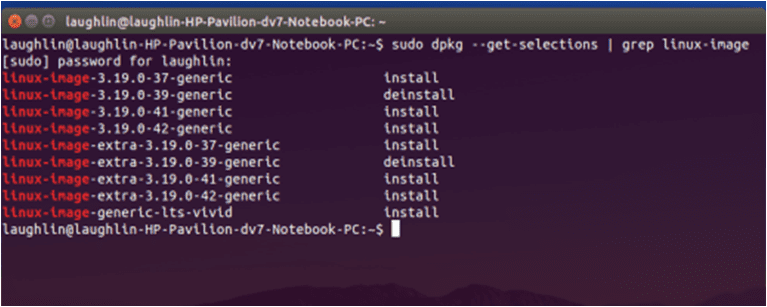
Before taking action on the problem, we must identify all those obsolete versions of the kernel that are stored in our system using this code.
$ sudodpkg --get-selections | greplinux-image
Below I show you an example of the result that the system will give, of course you should not take into account the version numbers, that will change according to the data of each system.
linux-image-3.19.0-33-genericdeinstall
linux-image-3.19.0-37-generic install
linux-image-3.19.0-39-generic install
linux-image-3.19.0-41-generic install
linux-image-extra-3.19.0-33-genericdeinstall
linux-image-extra-3.19.0-37-generic install
linux-image-extra-3.19.0-39-generic install
linux-image-extra-3.19.0-41-generic install
Once we have established the packages related to the old versions, we can begin to delete them manually, in the case indicated above they are the packages corresponding to version 3.19.0-33. For security reasons, it is advisable to leave at least 2 versions prior to the current one or only delete the oldest and keep the others.
Now, we can do that both from the terminal, and from a graphical package manager, such as Synaptic or for Ubuntu users the Ubuntu Software Center.
Using the terminal
To remove the old kernels from the terminal we execute the following command.
$ sudo apt-get remove --purge linux-image-3.19.0-33-generic linux-image-extra-3.19.0-33-generic
After executing this command, the system should already have enough space to install the updates related to the new version. It is also recommended to update the boot loaderGrub so that it correctly recognizes the changes we make in the kernel versions.
$ sudo update-grub
Anyway, this is done automatically after installing a kernel update, but after removing the packages, it is not enough to know how to do it manually. We must bear in mind that if we remove the packages related to the oldest version and there is still space for the new updates, we proceed to perform the process again and remove another version.
Using Ubuntu Software Center
Eliminate the old update packages we can also do it from a graphic package manager, for Ubuntu users I will explain how to do it using the Ubuntu Software Centerwhich is the application with which we can manage applications and packages graphically in Ubuntu.
If we access the Ubuntu Software Center from the Dash, we will find several options in the upper menu, there we will scroll until we find the applications that are installed.
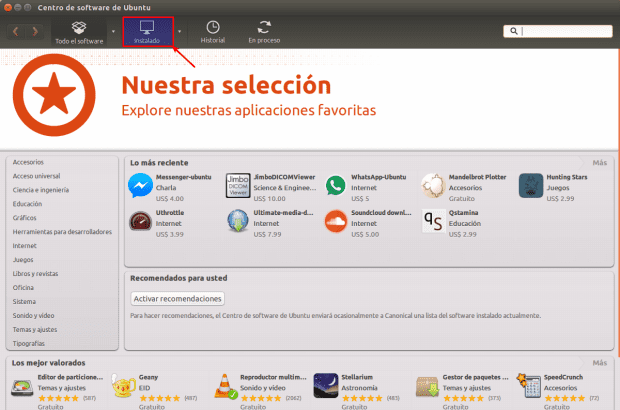
When we are there, we will go to the bottom and click on "show (quantity) technical elements " it is there where we will visualize the content in the form of packages and thus it will be easier to see the total number of packages installed on the system. If you type "Linux" in the search engine at the top, it should show a list with all the packages that contain that word and which are generally the packages relative to the kernel.

The packages that we will look for are packages of type linux-image-versionnumber-genericy linux-image-extra-versionnumber-generic. Once we identify them according to the oldest vision number, we can erase them.
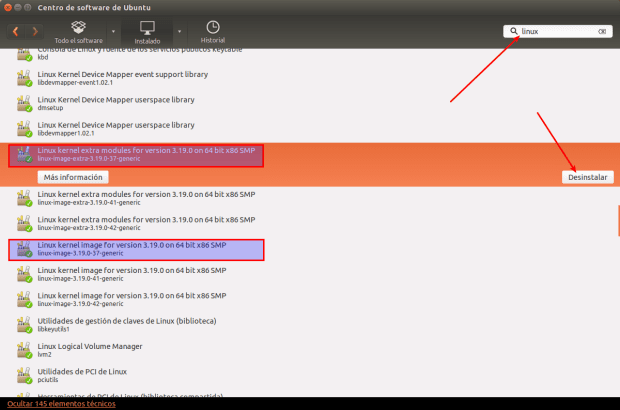
This is all when it comes to using Ubuntu Software Center to remove old kernel packages, but you can use the graphical package manager of your choice, if you want to use Synaptic or Muon, you can also use it in the case of KDE.
Very, very good tutorial more for people like me who am not very fond of Terminal.
Since I'm asking you something, I'm ready to format the machine to install Ubuntu 16.04; so is it necessary to assign a separate partition to / boot? I say this because the first thing they told me was very important partitions for / (root) and / home, then to add one for Swap and now, I find out that one for / boot was also necessary, recommending that it be 500-550 Mb that with that would be enough
Greetings and already thank you very much
It is not necessary to create the boot partition, but it all depends on each person ...
regards
Ah well, all good, is that I want to be a good user of Linux with what it entails advising me for an optimal functioning of my distribution
Very useful information to get rid of old kernels and get space. Lately I had been using the Ubuntu Tweak program to clean the cache and other accumulated garbage and previously I used the following commands, which to this day I do not know if they will be updated. Namely:
"Sudo dpkg -l | grep linux-image »
"Sudo apt-get remove –purge linux-image-xxxxxx-xx-generic"
Thanks for the information.
Good article, I did not know the function of the autoremove option, in general I prefer not to use the terminal (I am a bit lazy) so I have a little neglected all these options. As for the Ubunto Software Center I hardly use it, I get used to Synaptic and it is the one I use, so I do not have it very taken.
yes, there is no problem, you can use the package manager of your preference
hello ... in my case I release about 23 mb .. I have just installed the xubuntu version. what I did was right click on the boot folder, open the terminal from there and then put the command -sudo apt-get autoremove- that is indicated in this blog ... well .. I have it partitioned at 250mb, and I plan to download it more .. since it occupies 134mb in the system .. greetings, and I hope the info will serve you.