
To tell the truth, from my point of view, Nvidia tends to give more support to its components for Linux systems that unlike its competitors, it gives a more extensive support. This is because we can still find that many of theCards from years ago are still updated and add support for the most recent versions of the Xorg.
And this I have personally verified, since I am a user of ATI and Nvidia, but well this is not the point of the issue.
What is clear to me is that new users often don't dare to install private drivers from Nvidia out of fear, even those with more experience since they regularly tend to have a very common problem which is the famous black screen.
Fortunately for Ubuntu users, there are Nvidia graphics drivers in PPA third parties that are dedicated to keeping Nvidia drivers up to date for installation.
The PPA is currently in the testing phase, but you can still get working Nvidia drivers from here.
Installation of the Nvidia drivers.
Something that you must know always is which is the latest version of the Nvidia driver available for your graphics card.
If you are not sure about them, you can visit the Nvidia page where they will look for their model and choose Linux as the system, after which it will take them to the download page of the binary and they will be able to see there which is the version of the most current driver for your graphics.
Known this information, we need to make sure to remove any previous installation In case of having it, we only have to execute the following command for it:
sudo apt-get purge nvidia *
Done this, now we must add the repository to our system, for this we must open a terminal and execute the following command:
sudo add-apt-repository ppa:graphics-drivers
We update our list of repositories with:
sudo apt-get update
Now if you know what the version of the driver for your card is, you simply indicate it with the following command, this is merely an example:
sudo apt-get install nvidia-370
If not, we will have to go to our application menu and search for "Software and Updates and additional drivers.
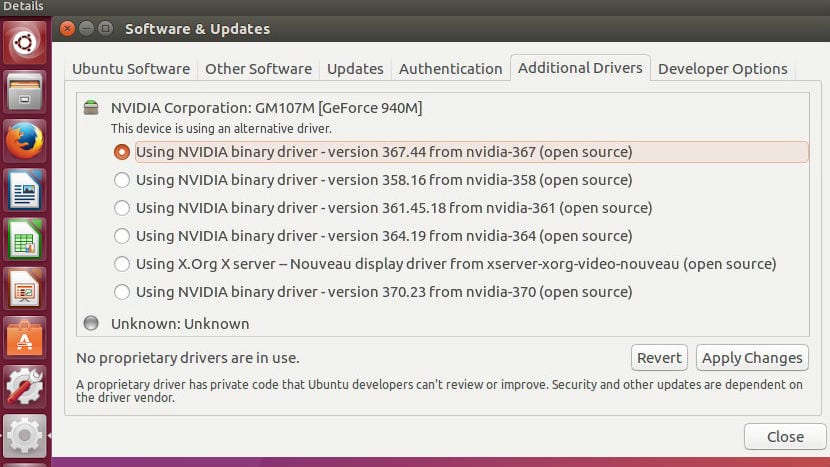
Here it will show us a list of the available drivers, where we can choose the one we like, even though the recommended one is always the most current.
Now, here is a part that everyone skips and is the main cause of black screen, at the end of the installation, on a terminal we execute:
lsmod | grep nvidia
If there is no output, then your installation has probably failed. It is also possible that the driver is not available in the system driver database.
You can run the following command to check if your system is running on the open source nouveau driver.
If the output is negative for nouveau, all is well with your installation.
lsmod | grep nouveau
Now, being sure of the installation free drivers need to be blacklisted, so that they do not conflict with the new ones already installed.
To create this blacklist, we are going to execute the following command:
nano /etc/modprobe.d/blacklist-nouveau.conf
And in it we are going to add the following.
blacklist nouveau

blacklist lbm-nouveau

options nouveau modeset=0

alias nouveau off

alias lbm-nouveau off
At the end we must save the changes.
And we are ready to restart the computer.
Another cause is the automatic installation of minor version updates, this usually happens when we run an apt upgrade.
To avoid this, just enter the following command, taking into account that this is your base version.
sudo apt-mark hold nvidia-370
How to uninstall the Nvidia drivers?
We just have to execute the following command:
sudo apt-get purge nvidia *
And remove the Nouveau drivers from the black list described above and execute:
sudo apt-get install nouveau-firmware
sudo dpkg-reconfigure xserver-xorg
We reboot for the changes to take effect and with that we return again to the free drivers.
"Nvidia tends to give more support to its components for Linux systems than, unlike its competitors, it gives more extensive support."
What nonsense gibberish is this phrase. Tremendous!
Comment that the line sudo add-apt-repository ppa: graphics-drivers has an extra space, it should be:
sudo add-apt-repository ppa: graphics-drivers
And the line sudo apt-get install nvidia-370 should be replaced with:
sudo apt-get install nvidia-390
regards
Good morning Lihuen.
Thanks for your observation, as far as the nvidia-370 line is merely an example, we do not all have the same hardware and not all cards support the most current driver version.
I have traveled many websites trying to put the nvidia drivers and I have had many problems, I have finally found this guide that works perfectly, I thank you for sharing this tutorial.
Graphic gtx 1050 running in:
Asus P5Q deLuxe motherboard
Intel core 2 Quad cpu Q9300 processor
memories 4 modules of 2GB DDR2 800
Hello, first of all good tutorial, of 10. I have followed the steps to the letter and when executing (it gave me the output of Nvidia, and when executing lsmod | grep nouveau, the output was negative, but for this I had to restart the ACER Nitro 5 laptop, for the installation of the drivers in my case nvidia-driver-455 to take effect)
I have the problem when creating the file:
nano /etc/modprobe.d/blacklist-nouveau.conf
And in it we are going to add the following.
blacklist new
blacklist lbm nouveau
new modeset options = 0
aka nouveau off
aka lbm-nouveau off
** Either when giving Ctrl + O or Ctrl + X which is to exit and save, at the end you have to give the intro, well, I get: (Error writing /etc/modprobe.d/blacklist-noveau.conf: Permission denied.
Any solution to this? you might have to put before (sudo) nano /etc/modprobe.d/blacklist-nouveau.conf
Thank you please, if you could write to me, I would appreciate it very much.
pampyyto@gmail.com