
|
For various reasons, you may find yourself having to run a Windows program on Linux. It may be that there is no version for Linux, that the version for Windows is better or more professional ... or simply your favorite. It may also be that you need to use that program because it is the "standard" of the industry you work in or because no Linux program supports the type of files or documents created with your Windows program on another computer. |
Introduction
Before starting with the instructions, I think it is necessary to make a brief reflection: once you install Linux, there are many ways to run Windows applications, there is even the possibility of installing Windows in a virtual machine, which you can run directly desde Linux.
However, Wine is NOT an emulator, as its name says (Wine Is Not an Emulator, hence its acronym). This means that a Windows application that you run with WINE could, in fact there are several recorded cases, run much lighter on Linux than on Windows.
On the other hand, although in some cases it may be convenient to create the happy virtual machine and install our copy of Windows and then our program in it, this can also be a problem. First of all, because of the enormous amount of resources (disk space, memory and processor) that this process would consume. Second, Windows is not free software, and to install it, you are supposed to have a genuine version. Otherwise, you wouldn't be escaping the patent problem with Windows.
To learn a little more about Wine, I recommend you read its Documentation, Wiki, How-To for Beginners and the document «Debunking Common Myths Related to Wine«.
Install Wine
In Ubuntu:
sudo apt-get install wine
In Fedora:
yum -y install wine
In the download section you can find the latest Wine packages for other popular Linux distributions such as Mandriva, Slackware, Debian, OpenSUSE, etc.
Run and install Windows programs
Once installed, Wine will run when you double-click on any .EXE file. In addition, it will allow you to install programs, as if you were in Windows and it will put the shortcuts in the main menu under the category «Wine».
Despite what many people believe, Wine is used not only to run "simple" Windows applications, but even complex games. What's more, it has been proven that terrible games like Sim 3, Half Life 2, Command & Conquer 3, Star Wars: Jedi Knight, or important suites like Microsoft Office work perfectly.
It won't let me run my program / installer! Sniff sniff…
As I suppose you are aware, Linux is a system that is managed through privileges granted to users. This allows only certain users to do certain things. The same goes for files. By default, no .EXE file downloaded from the internet is "executable", until the user indicates otherwise.
If when trying to run the file you see this message:
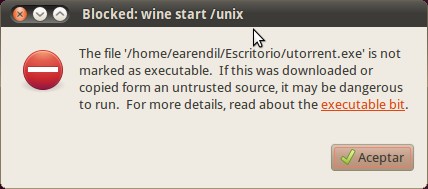
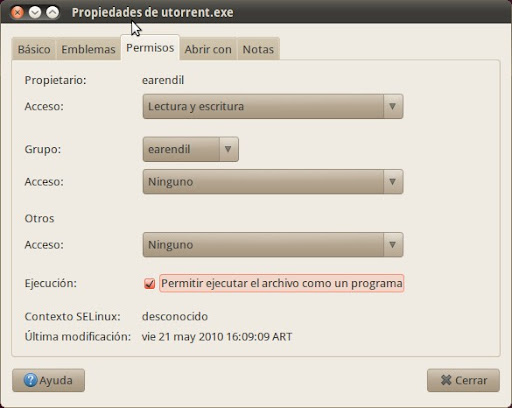
Then all you have to do is right click on the file. I chose the Properties option. Once there, go to the Permissions tab and enable the Allow the file to run as a program option:
I have other problems running my program
In case the application in question does not run as it should or has problems, I recommend entering the Wine Applications Database to see the comments of other users and their experience running that program using the different versions of Wine. Each installed and tested program has a ranking. If the program you are looking for does not appear in the list, it is a good opportunity to collaborate and upload your impressions.

Uninstall programs in Wine
This is very easy. Go to Applications> Wine> Uninstall Wine software.
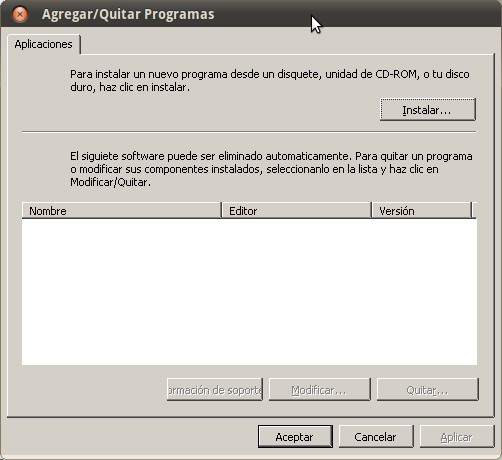
From there you will be able to easily remove the installed program. You can also install new programs using this tool, although it may be easier simply by double clicking on the installer in your file explorer or directly from the download window of your internet explorer.
Where is everything installed?
By default, all programs will try to install themselves on your C disk. The question is, what is my C disk? Where are all the files corresponding to the Windows applications installed with Wine actually stored? The answer is simple: ~ / .wine / drive_c. That is, in your home there is a hidden folder called .wine in which all the files on your disk C are stored. Actually, as you can see, it is simply a folder that Wine calls "Disk C".
Remember that you can always install your programs in other locations. This is especially useful if you have little space on the disk or partition where you have Linux or your Home folder installed.
Configure Wine

I am afraid of viruses
It is not fair that Windows users get all the fun, as everyone knows Linux viruses practically do not exist. Some time ago, there was a kind of experiment to run windows viruses on Linux with wine.
5 of the most harmful viruses tested (Klez, My Doom, Sobig, SCO Worm, Some Fool) and the results are not very encouraging, none were able to spread and also only one could affect the linux operating system itself.
In summary, you do not lose security by running Windows applications using Wine, on the contrary, you will be much safer than if you ran that same application in Windows.
wine tricks
Sometimes installing a Windows application on Linux using Wine can be a difficult task, especially since some of them require external libraries.
wine tricks is a quick and easy script to download and install these redistributable libraries that are sometimes needed for everything to work wonderfully.
How do you install?
wget http://www.kegel.com/wine/winericks
How do I run it?
Once you have obtained Winetricks you can use it by typing in the terminal:
sh wine tricks
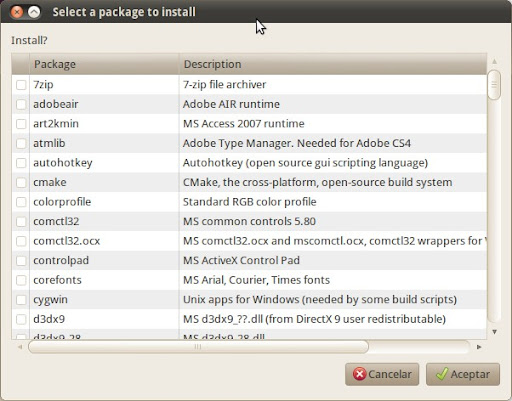
If you run it without parameters, a winetricks screen shows a GUI with a list of available packages. If you know the name of the package (s) you want to install, you can add the name (s) to the Winetricks command line and immediately start the installation process. For example,
sh winetricks corefonts vcrun6
This will install both corefonts and vcrun6 packages.
Wine Doors
Wine Doors is an excellent little program that allows you to install very popular Windows applications easily and without problems. This saves you from having to google to see what configuration to use, etc.
To install it, you just have to go to the download section of the official website and choose the package that works best for your Linux distribution.
An example: uTorrent using Wine
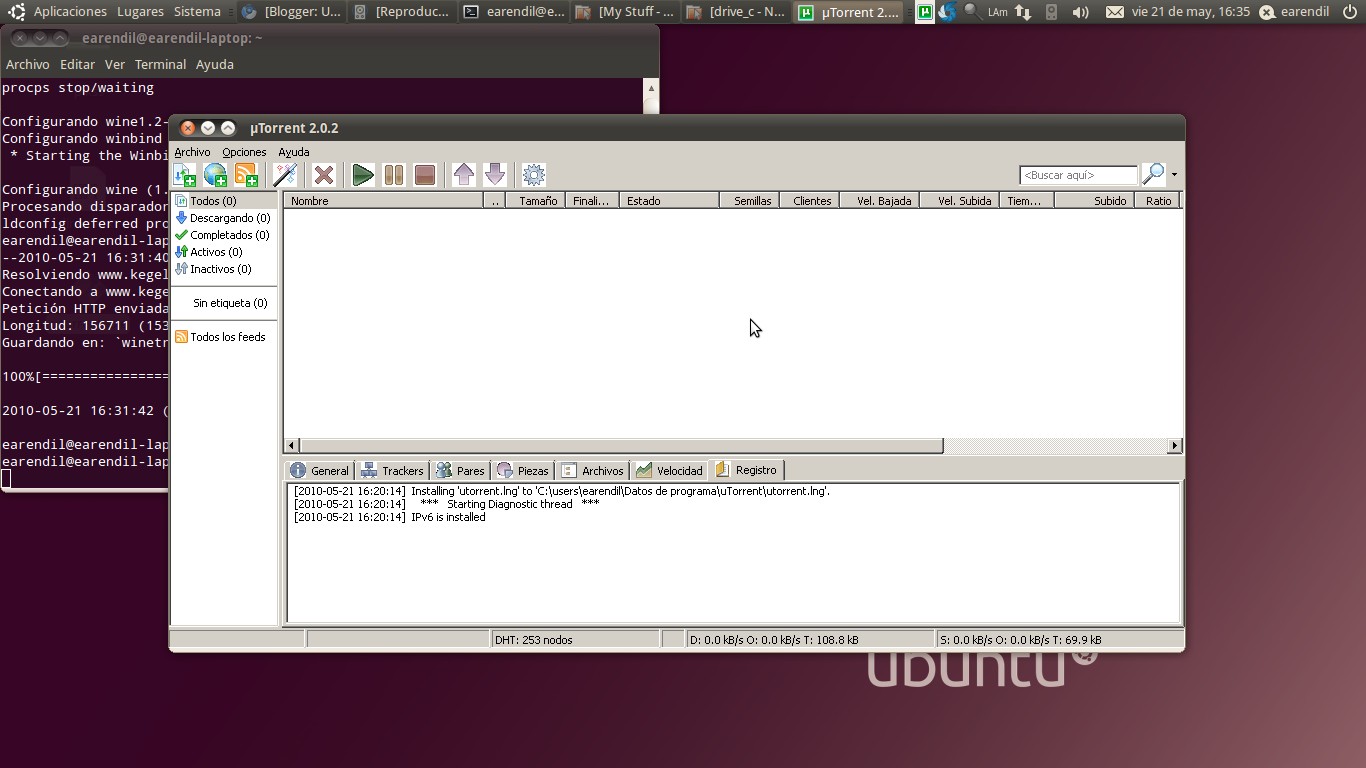
No i use Transmission or the incredible Deluge. If you didn't try them, please do so. But, just to show what a Windows application looks like in Ubuntu using Wine, here is a screenshot using uTorrent.
WHERE IS THE LINK TO DOWNLOAD
There is no download link! It is through the use of your terminal that you will do everything.
Hello, can I install a webcam and its drivers in wine? is that only that camera is compatible with window XP, Me, 2000, and 98 the model of the camera is slim usb2 videocam. I already tried to connect it in Ubuntu 14.04 and I could not just turn on the red light the only one that Ubuntu detects is my integrated camera of the lap but I want to connect my external genius camera I can do it with wine
Hello! Look, in my experience, the problem is not your webcam, but Wine does not bring support for USB devices ... there are some ways to support some devices but they are not easy.
Can't use the webcam directly on Linux (without running a windows app with wine)? It seems to me that the solution is more on that side ...
A hug! Paul.
the safest thing is that your Web-Cam works plug & play in your Ubuntu, so you do not need any installation CD. just try to run it with the latest Ubuntu Version 16.04 or 17.04 (which has a fairly updated kernel).
In the event that it does not work with these current versions, I recommend resigning ... since the device is very old (if it did not receive support in linux until now, I think it never will).
On the other hand, as you mentioned, the webcam also lost support for the current versions of Windows, so it may be time to buy a new Webcam.
Thus, for the next Webcam purchase, keep in mind to acquire a Webcam with Linux support… which will guarantee that your device will have guaranteed support for several decades to come.
HELLO FRIENDS HOW MANY ARE FOLLOWERS OF THIS SITE
Hello, I ask you a question. I have mandriva 2011 and wine 1.3.2.4 is installed. I can't run any application. nor does the wine open. It may be that the package is not installed correctly? What do you recommend me to try?
Hello, install wine, I want to run a prog called esword and I get the following error: "run-time error" 429 ": activex component can't create objet". Can someone tell me how to fix it. Thank you
hello I have problems in ubuntu with this error ... Error: 429 - ActiveX component can't create object can you help me please. I don't know what happened, soz new to this.
or visual studio, I know that sounds funny, but is it possible?
or visual studio I know that sounds funny, but it is possible.
You can emulate a program like sonar 8.
I am very new to linox, I have fedora 17 and installed wine to open internet explorer since I need it to open a particular page, but it is not clear to me how to use it, you can explain something like "how to open internet explorer in wine for dummies" hahaha they would save my life thanks
you can download mozilla and run it directly on linux
Thank you very much, your explanation is very clear
You're welcome! Hug!
Pablo.
I loved your guide, thank you very much for sharing your experience 😀
Thanks, it helped me with the Winetricks installation, this part was missing in the wine program.
When I hit the permissions tab, it tells me that it is read-only system (CDROM) and I can't install it. What I do?
Hello Alejandro! I would tell you to try the solution that I give in the section «It won't let me run my program / installer! Sniff, sniff ... »of this post.
Of course it is possible. What's more, my experience tells me that they work better than non-portable programs.
Hug! Paul.
Hello, could you tell me if a portable program can be run in wine .. Thank you very much
One question, I have xubuntu and it won't let me run it, but I don't see the option to allow the file to run as a program, the file is autorun.exe
Hi Pablo, thanks again.
Yes, if I have done this what you say and also the permissions as far as the file dialog box gives. Tell you also that wine opens for me and in the tab »C» is where I try to open the file (I have installed the opensuse on an external hard drive and the win-XP, on the netbook hard drive), but it tells me that there is no windows program installed to open the file (the internet explorer has managed to open it, that is). The problem I have is that I need to install the drivers and controllers of the netbook because, for example, the wif does not work for me in suse (even if the options of the netbook CD, it automatically detects the installed operating system, including linux, but the CD does not run I can't even open it.) Nothing else at the moment.
A greeting.
You tested by right clicking on the file and choosing the option to open with… Wine.
Cheers!! Paul.
On 12/12/2011 13:59, «Disqus» <>
wrote:
Thank you very much it helped me a lot, I was finally able to use wine with some programs that gave me problems
That good! I'm very glad it served!
Thanks x comment!
Ahh! Now I understand what's wrong ...
The theme is like this:
With Wine you can run simple windows applications without problems. Now, when it comes to running more complex applications, things are a bit more complicated and it is natural that this is the case. To run Word, it is not enough to run the Word .exe that you have on the Windows partition (basically because Word runs a lot of other things at the same time and saves settings in the Windows Registry, etc.). What to do then? Well, you have to install Word using Wine and then, yes, run Word.
In other words, Wine is not going to help you run the applications that you already have installed on the Windows partition (unless they are very simple or so-called "portable" applications). What you have to do is install the application (the .EXE installer will work fine with WINE) and install the program as if it were a Windows application ... only that it will install it in your / home / your_user folder /.wine.
Was the difference clear? I hope I have been as "didactic" as possible.
Cheers! Paul.
Thank you It served me a lot thank you
Here are some libraries that bring the winetricks art2kmin MS Access 2000 runtime. License required!
color profile Standard RGB color profile
comctl32 MS common controls 5.80
comctl32.ocx ms comctl32.ocx and mscomctl.ocx, comctl32 wrappers for vb6
corefonts MS Arial, Courier, Times fonts
dcom98 MS DCOM, override the Wine implementation
dirac0.8 the obsolete Dirac 0.8 directshow filter
directx9 MS DirectX 9 user redistributable
DivX DivX Video Codec
dotnet11 MS .NET 1.1 (requires Windows license)
dotnet20 MS .NET 2.0 (requires Windows license)
ffdshow ffdshow video codecs
flash Adobe Flash Player ActiveX and firefox plugins
fontfix Fix bad fonts which cause crash in some apps (eg .net).
gdiplus MS gdiplus.dll (from powerpoint viewer)
gecko The HTML rendering Engine (Mozilla)
icodecs Intel Codecs (Indeo)
jet40 MS Jet 4.0 Service Pack 8
liberation Red Hat Liberation fonts (Sans, Serif, Mono)
mdac25 MS MDAC 2.5: Microsoft ODBC drivers, etc.
mdac27 MS MDAC 2.7
mdac28 MS MDAC 2.8
mfc40 MS mfc40 (Microsoft Foundation Classes from Visual C ++ 4)
mfc42 MS mfc42 (see vcrun6 below)
mono19 mono-1.9.1-gtksharp-2.10.4-win32-2
MSI2 MS Installer 2.0
msls31 MS Line Services 3.1 (needed by native rich?)
MSXML3 MS XML Version 3
MSXML4 MS XML Version 4
MSXML6 MS XML Version 6
ogg ogg filters / codecs: flac, theora, speex, vorbis, schroedinger
pdh MS pdh.dll (Performance Data Helper)
quicktime72 Apple Quicktime 7.2
riched20 MS riched20 and riched32
riched30 MS riched30
tahoma MS Tahoma font (not part of corefonts)
vb3run MS Visual Basic 3 runtime
vb4run MS Visual Basic 4 runtime
vb5run MS Visual Basic 5 runtime
vb6run MS Visual Basic 6 runtime
vcrun6 MS Visual C ++ 6 sp4 libraries (mfc42, msvcp60, msvcrt)
vcrun2003 MS Visual C ++ 2003 libraries (mfc71, msvcp71, msvcr71)
vcrun2005 MS Visual C ++ 2005 libraries (mfc80, msvcp80, msvcr80)
vcrun2005sp1 MS Visual C ++ 2005 sp1 libraries
vcrun2008 MS Visual C ++ 2008 libraries (mfc90, msvcp90, msvcr90)
vjrun20 MS Visual J # 2.0 libraries (requires dotnet20)
wmp9 MS Windows Media Player 9 (requires Windows license)
wmp10 MS Windows Media Player 10 (requires Windows license)
wsh51 MS Windows Scripting Host 5.1
wsh56 MS Windows Scripting Host 5.6
wsh56js MS Windows scripting 5.6, jscript only, no cscript
wsh56vb MS Windows scripting 5.6, vbscript only, no cscript
xvid xvid video codec
Apps:
autohotkey Autohotkey (open source gui scripting language)
firefox3 Firefox Version 3
kde KDE for Windows installer
mpc Media Player Classic
vlc vlc media player
Pseudo-packages:
allfonts All listed fonts (corefonts, tahoma, liberation)
allcodecs All listed codecs (xvid, ffdshow, icodecs)
fakeie6 Set registry to claim IE6sp1 is installed
native_mdac Override odbc32 and odbccp32
nt40 Set windows version to nt40
win98 Set windows version to Windows 98
win2k Set windows version to Windows 2000
winxp Set windows version to Windows XP
Set windows version to Windows Vista
winver = Set windows version to default (winxp)
volnum Rename drive_c to harddiskvolume0 (needed by some installers)
Remember you can install them with sh winetricks application name
As you well know there is a utility for MS WOS called daemon tools that mounts disk images and emulates security systems, but does not work with wine - that I know - Do you know if there is an alternative to daemon tools for wine that EMULATES THE SYSTEMS OF SECURITY?
Mmmm ... not really. There are programs that do something similar to Daemon Tools, but I'm not sure they emulate security systems. What exactly do you mean when you talk about "security systems"?
To the options to emulate Safedisk in its different versions and others
that come in the daemon menu, which now I can't see because I've been 6
months without MS WOS even in emulation.
Come on, if you download a pirate ISO of a game, even if you mount it with
furius, acetone, by commands or whatever will give you an error of
security unless there is a good crack who directly skips it.
I suppose that a web or section dedicated to how to play with ISO images of
games in wine, with the precaution of always starting with «making a
ISO of your original copy »even though we all know it's a lie, it would have
much success among Maqueros and Linuxeros. That is if you avoid giving links to
torrents directly, that, in any case, if it is difficult for you to do the
ISO copy of your original can be found on another website of
backup downloads.
Of course, finding a gamer, a wine player, or a cracker must
be relatively difficult.
It is easier to directly hack MS WOS and games.
On 18/11/10 23:08 PM, Disqus wrote:
How about ... first I want to send congratulations to all the people who promote the use of Linux operating systems, and I say that they promote by all the blogs that have been found in order to solve doubts and show the tools that allow using Linux, especially Ubuntu , and leave behind other operating systems such as Windows and Mac.
Well my question is the following: I have installed Microsoft office with the help of wine, however every time I open a file to modify it with office (and I need it with office because my work team uses it) it asks me for the 25 character password, I put it and then it is impossible for me to open the office because it gets stuck ... do you know what I can do? Do you know how I can open an office without asking for the password like everyone else? I have installed office full but the same problem continues ...
I would appreciate some advice… thank you very much in advance.
All very well, I have installed a couple of things with wine and they work fine, but now I am trying to install TOAD for Oracle and when I start the TOAD installation screen, I get a window that tells me that I do not have access privileges, that I need to run the program as an administrator, I don't understand why this happens to me, I have run other things with wine and this has not happened to me, and I don't see that it has happened to anyone.
Thank you very much, I am going to install the dotnet40 to see if it works for me. Great info, I had been looking for a not very technical explanation of all this for a long time!
Hello friends of Let's use Linux !!
I am something new to using linux !! I currently use the Ubuntu 10.04 distro and I liked it… I have read and tested the things that it has by itself and I have been learning fast !! I installed wine but I had a small error when I installed a windows program (winamp) with wine and decided to uninstall wine but the problem is that I don't know how to do it! Could you please help me with that? what I want is to uninstall it completely without leaving any sign! I mean to uninstall it from the system delete the folders it creates at the time of installation and delete from the applications menu !! everything!!! Greetings I hope to receive a good and easy help !!
Excellent! Winchester, Wintendo or whatever that "operating" system is called, is rubbish compared to the versatility of UNIX !! what stability if we talk about fedora, devian, etc ... these are competent operating systems!
I'm from Venezueal and I installed CANAIMA on my computer to not use WINDOWS but I have a program that I don't know how to do to make it run in WINE if you can give me a hand I would be in debt ... the program can be seen in http://www.jovenes-cristianos.com/index.php?option=com_content&view=article&id=766:software-biblioteca-cristiana-adventista-2011&catid=37:tutoriales&Itemid=59 what you can do for me THANK YOU
The link is broken ...
On August 10, 2011 21:10 PM, Disqus
<> wrote:
just an excellent article friend thank you very much
I'm glad it worked! Thanks x comment.
We hope to see you here more often.
Cheers! Paul.
Maybe this info will help you: https://blog.desdelinux.net/como-jugar-juegos-windows-en-linux/ Cheers! Paul.
Very good info, Using Wine and Play on Linux I'm trying to install Microsoft's .net and I'm going crazy, version 4 won't let me and it tries to install version 2 automatically, is this normal?
Hello, I have already read everything, I have also found out but ... I do not get anything from .EXE !!! ; (And I want to download it. A friend of mine has the WINDOWS program (In copy) because she found a strange page on the internet. I would like you to help me in this because it is important to you. IF you can as soon as possible, better. A kiss 😉 Graxx for reading and helping (I HOPE) xD
See, install an epson fx-890 printer as a 9-pin printer…. I want to configure my printer to print half a page and not skip the entire page…. I have a pre-printed form that is half a page size 5.5 ″ x 11 ″ inches. thanks
what version of wine is it?
very good! excellent Pablo. It is good that this type of information reaches people who do not know Linux and have it for a "cuckoo". Keep in mind that people thought that after the ocean the world ended and ... Columbus discovered Linux, hehehe
Maestrooo !! Thanks Pablo, I couldn't make wine work, excellent.
see you soon.
I already have it, good post makina
Thanks a while ago I am looking for this application for linux. I got a netbook at school that has 2 operating systems integrated: linux and windows. I did not use linux much until my windows stopped working and it is very good!
What can't you install? Wine?
Just a sudo apt-get install wine.
Cheers! Paul.
One question I have linuxmint and I can't install it. I leave you my email to help me.
tadeorios22@gmail.co
No, you don't have to have Win installed on another partition.
Wine takes care of everything. 🙂
To understand a little more how Wine works, I suggest you read the related article on Wikipedia: http://es.wikipedia.org/wiki/Wine
You will also find several articles of interest here: http://usemoslinux.blogspot.com/search?q=wine
Cheers! Paul.
2012/11/14
To be able to use, do I have to have windows installed in some other partition? or can I forget about it completely?
Hello good evening, I am new to Linux, could you tell me how I do to imitate win 7? Since when I try to configure that, the most updated version that appears to me is win xp.
Excellent work, Pablo! Thanks to you I managed to run the Afip applications on Linux (Ubuntu 11.04) (One more step towards independence.) Bravo!
Great! It would be great if you could do a screencast on the subject, right? A hug! Paul.
Hello, the same thing happens to me as to mauro365, but in opensuse, how do I run autorun.exe? Wine.Thank you in advance.
How or what are the necessary libraries to install nero?, specifically nero 10
The contribution is cool friend
Wow, I'm falling in love with linux, lol XD, and it's serious. Here we go and let the adventure begin. Hello Linux 🙂
Hello friend, I'll tell you.
I've been in Linux for less than 1 week and I'm half hung up, (I went from win7 to linux mint). I've been reading your tutorial, it's very good, but I want to know more about this Wine program, I need to install the microsoft office, I followed your steps, but I'm halfway there, well that's what I say, maybe I'm less than halfway there.
I went through wine tricks and I found office 2007 and installed it (according to me) xd, but I can't find it, I went here: but I looked for several folders and I didn't find anything, I hope your prompt response and that you guide me because, in linux issues I am a newbie, thanks.
Today, my recommendation would be that you try PlayOnLinux. It includes a series of scripts to install some Windows games and apps ... I think Office is among them ...
Hug! Paul.
But where is the dico c
check the .wine folder in your HOME
I'm sorry friend but I have in Canaima because I am 10 years old and I search and search and I have not found it
There is a folder that says lost fund but when I want to open it it says that I do not have permission
I have a question when I want to install an application windows asks me for another application called gui like ago to solve that problem
gui is not an application, it means Graphical User Interface (that is, graphical interface).
Hence, I have no idea which program may be the one that is missing.
It is not enough information to help you.
I'm sorry.
Greetings, Pablo.
Hello friends, can you tell me how to download and install minecraft 1.7.2 in ubuntu, please, I need your help
Excellent text, thank you
Excellent article, it helped me decide what to install, virtual machine or linux programs, thanks! I'll tell you how it went!
You're welcome! Thank you for leaving your comment
Hug! Paul.
thanks for the explanation, it helped me a lot.
Very good! Thanks for the info!
or do I have wine
that's why i do this
hahahahaha where is the link LOL
FOLLOW THE INSTRUCTIONS!!!
Hello this is my question is that when I install it I get this: sudo apt-get install wine1.6
Reading package list ... Done
Creating dependency tree
Reading the status information ... Done
Do not can instal some pack. This may mean that
you asked for an impossible situation or, if you are using the distribution
unstable, that some necessary packages have not been created or have
been moved out of Incoming.
The following information can help resolve the situation:
The following packages have unmet dependencies:
wine1.6: Depends: wine1.6-i386 (= 1: 1.6.1-0ubuntu1 ~ ppa1 ~ precise1)
Depends: binfmt-support (> = 1.1.2) but not installable
Recommend: gnome-exe-thumbnailer but it is not installable or
kde-runtime but not installable
Recommend: fonts-droid but not installable
Recommend: ttf-mscorefonts-installer but not installable
Recommend: fonts-horai-umefont but it is not installable
Recommend: fonts-unfonts-core but not installable
Recommend: winbind but not installable
Recommend: winetricks but it won't install
E: Problems could not be corrected, you have retained broken packages.
There is also the wine tricks: sudo apt-get install winetricks
Reading package list ... Done
Creating dependency tree
Reading the status information ... Done
Do not can instal some pack. This may mean that
you asked for an impossible situation or, if you are using the distribution
unstable, that some necessary packages have not been created or have
been moved out of Incoming.
The following information can help resolve the situation:
The following packages have unmet dependencies:
winetricks: It depends: cabextract but it is not installable
Recommend: wine1.5 but it won't install or
wine1.4 but is not installable or
wine or
cxoffice5 but it is not installable or
cxgames5 but it is not installable
Recommend: unrar but not installable
E: Problems could not be corrected, you have retained broken packages.
benjamin @ benjamin-Lenovo-G570: ~ $ sudo apt-get install winetricks
Reading package list ... Done
Creating dependency tree
Reading the status information ... Done
Do not can instal some pack. This may mean that
you asked for an impossible situation or, if you are using the distribution
unstable, that some necessary packages have not been created or have
been moved out of Incoming.
The following information can help resolve the situation:
The following packages have unmet dependencies:
winetricks: It depends: cabextract but it is not installable
Recommend: wine1.5 but it won't install or
wine1.4 but is not installable or
wine or
cxoffice5 but it is not installable or
cxgames5 but it is not installable
Recommend: unrar but not installable
E: Problems could not be corrected, you have retained broken packages.
Someone help me
Save yourself trouble and better install PlayOnLinux:
sudo apt-get install playonlinuxwhen I have connection I cannot use it and it tells me that it is because I have no connection
Hi. I read that they asked before and there was no answer. Is it possible to install visual studio on xubuntu through wine?
I can not install anything with linus I need a virtual dj I follow the steps of the youtube tutorials and nothing I need help
I need you to help me install the following Program in Linux and with Wine "Visual C ++ 6.0" Since I depend on it to pass one of the Subjects at the University.
The problem I have is that when I click on the Next Button (the first one that appears in the installation), the Installation automatically closes.
Then I would like you to help me as soon as possible. Please.
Thank you.
Hi Manue!
For a few days we have made available a new question and answer service called Ask DesdeLinux. We suggest that you transfer this type of consultation there so that the entire community can help you with your problem.
A hug, Pablo.
Hello, I need help. I have an OS called Lightweight Portable Security (LPS) and I can't install wine. Please help me. Thank you!
As Intalo Wine; c please join me That I NEED them please If Anything Here RSPN Me PLEASE Thank you: *
Thank you masters very good data
How do I install wine in government linux, what are the commands to put in the termial?
Very good.
Also basic examples: http://tupagina.comuf.com/
All the wine instructions have been very useful to me
I'm glad!
Cheers! Paul.
We are trying to run an ERP system made in visual fox with access to the sql server database and we have problems, someone has done this ?????, what help can they give us
Greetings… question: how do I link a file type with a program in Wine? I installed the Open ModPlug Tracker which seems very practical to me, [custom] and all file types were linked, .XM, .IT , .S3M, among others ... but not the .MOD. With the classic method, as with any Linux program, you cannot, you only get to open the program in WINE but not the file ...
Hello,
I would like to recover and reuse the Lotus Organizer 5.0 agenda on Ubuntu.
With Wine he doesn't even open it for me.
I know that not all programs that work with Windows do so on Linux, and even more so considering that this agenda is already old.
Any ideas to make it work on Ubuntu 10.04?
Thank you.
Hello,
I try to recover and continue using the Lotus Organizer 5.0 agenda on Ubuntu 10.04 with Wine.
The program does not open the application for me. I know that some that work on Windows are not compatible with Linux and more if they are old, as is the case with this agenda.
Any ideas that the Organizer can make me work?
Thank you.
Hello again,
Ubuntu version is 16.04.
Excuse me
Very good guide. Pretty practical. After installing Wine every time you run a new application, download the necessary libraries to run it. But it doesn't always work for all applications.
regards
excellent guide has worked wonders for me
Wine is rubbish, I try to install an application and he opens two windows by himself and then complains that there is already an installer running and that he closes the other one, if I try to close one of the windows, Wine closes ... Pure rubbish, it is better look for an alternative application in Linux and you forget about these problems.
I did everything, but nothing works in lubuntu .... linux