One of the new features that includes gnome-shell is the possibility of recording our desktop with a simple combination of keys. In Gnome2 we do not have this option, but a user in Gnome-Look has created a simple script that will facilitate this task by using ffmpeg.
How do I run it?
The first thing we have to do is download the script from this link and we extract everything that is inside. In order to run the script we have to have some packages installed, so we open a terminal and put:
$ sudo aptitude install xterm zenity ffmpeg xdg-user-dirs-update xrandr
Depending on the distribution you use, some of these packages may already be installed.
Later from the console itself, if you prefer, access the folder where the files were extracted and execute it:
./Setup
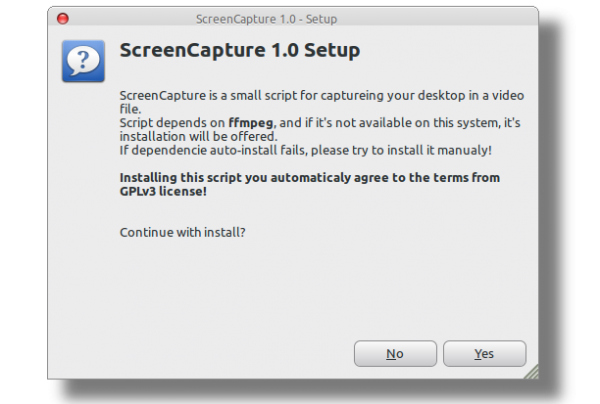
And we should get something like this:
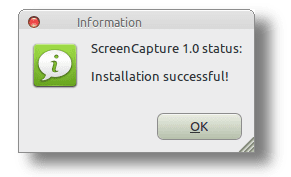
If everything is installed correctly we will get a window like this:
A direct access to the script will be created on the desktop, which we execute and this will come out:
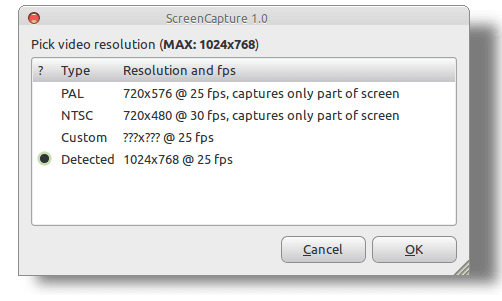
As you can see, it has detected that the resolution on my monitor is 1024 × 768 y is the option that is selected by default. Of course, we can always put the measures we want in CUSTOM. If everything is as we want, we click Ok and no information will appear:
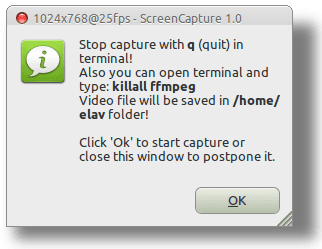
What it is basically telling us is how to stop the recording process once it starts by just pressing Ok. When we do this we will get a terminal (xtherm) which we must maximize if we do not want it to appear in the recording 😀 and to finish, we only have to press the letter «Q«. The video will be saved in our / Home.
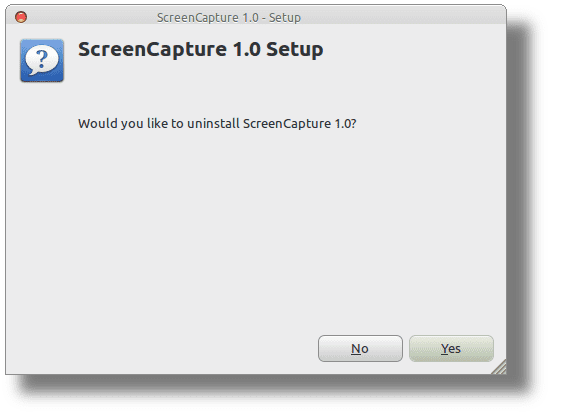
Simple right? If we run the installer again, what it will do in this case is uninstall the entire script.
Well come on, having said that to create beautiful Screencasts or tutorials 😀
After all, it is a bit of a hassle to install, but Record my Desktop has the same problem, you have to install the graphical interface separately
I do not see that the installation is so complicated. In fact, it's faster than it seems .. 😀