

|
Webmin is a tool of systems configuration accessible Web way for OpenSolaris, GNU / Linux and other Unix systems. With it you can configure internal aspects of many operating systems, such as users, space quotas, services, configuration files, shutdown of the computer, etc., as well as modify and control many free applications, such as the Apache web server, PHP, MySQL, DNS, Samba, DHCP, among others. |
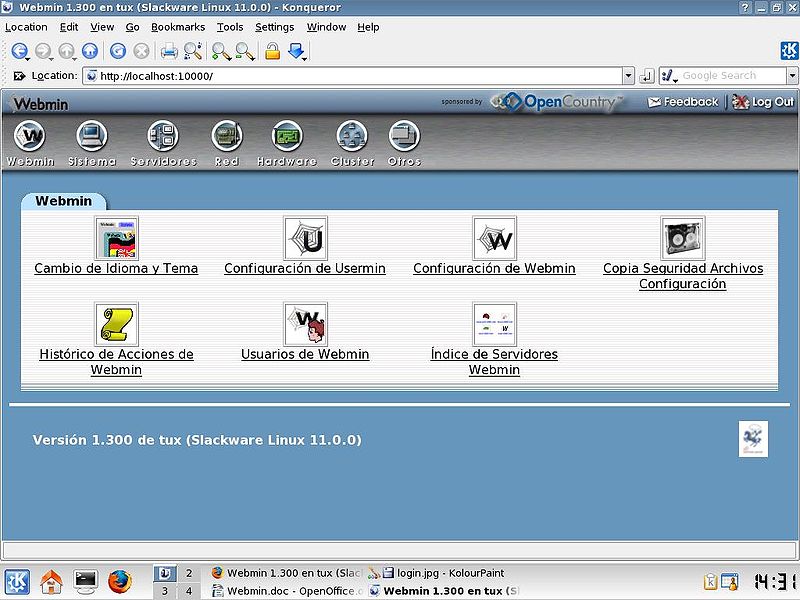
The command console or terminal is the Swiss army knife of a Linux administrator, but there are other options. One of them is webmin -distributed with a BSD license- which allows the administration of Linux graphically through any Internet browser.
If you are not a Linux administrator but you are very attracted to managing a web server, mail, database, this is a great opportunity to begin to understand the operation of the administrative tasks of a sysadmin, from the comfort of your web browser .
Webmin is written in Perl, version 5, running as its own web server and process. By default it communicates via TCP through port 10000, and can be configured to use SSL if OpenSSL is installed with additional required Perl modules.
It is built from modules, which have an interface to the configuration files and the Webmin server. This makes adding new functionality easy without much effort. Due to the modular design of Webmin, it is possible for anyone interested to write extensions for desktop configuration.
Webmin also allows you to control multiple machines through a simple interface, or log in to other webmin servers on the same subnet or local area network.
There are other more specialized versions of webmin such as: usermin (non-root users), Virtualmin (Virtualhost) and colludmin (virtual systems).
You can download it directly from the page in tarbal, RPM or DEB and follow the wiki webmin for installation.
Installation and use
The first thing to do iss open a terminal and edit the sources.list file found in / etc / apt for them we write:
south you /etc/apt/sources.list
Open the file add the following lines:
deb http://download.webmin.com/download/repository sarge contrib deb http://webmin.mirror.somersettechsolutions.co.uk/repository sarge contrib
Once done, save the changes to the document. Then iImport the GPG key in the terminal the following commands.
wget http://www.webmin.com/jcameron-key.asc
sudo apt-key add jcameron-key.asc
After completing these steps, update the list of repositories:
sudo apt-get update
Finally, install webmin:
sudo apt-get install webmin
To use Webmin you will only need to open the web browser of your choice and enter the following address: http: // serverip: 10000 /
More information: webmin.com
That will be because it uses https to connect via the web, and chrome detects that it is not a certificate signed by some CA.
There is no problem for it.
I have just installed and tested it on my laptop and it is surprising the amount of information that this application throws up about the system itself, through the browser.
Of course, before entering, Chromium has given me a security warning, one of those serious ones that come out when you enter a site of little trust. For first-time users to know.
Very good find. Regards.
How isistes help him pofa
I can not enter the path / etc / apt as I did and tried and nothing
I know it is a bit late to give this answer, but it may still be useful for people who have this dilemma. Perhaps the problem is that the file must be opened with this command: sudo gedit /etc/apt/sources.list so the line can be included. Another thing, the word gedit is the text editor used for this example, but it can be nano or another. And finally, you don't necessarily have to write sudo if you are already a superuser.
It was missing to indicate that the sources.list file could not always be in that path, it depends on the distribution, it can be found in the sources.list.d folder for example.
That's it…