

XFCE: How to customize Linux Mouse Desktop Environment?
One of the topics or areas, which often fascinates many of the more and more users of GNU / Linux around the world, it is usually the ability of the latter to allow themselves to be personalized, and allow them to show off their customization capabilities before others, in healthy and good competition.
Certainly every GNU / Linux Distro, each Desktop Environment (DE), each Window Manager (WM) it usually has different customization capabilities. Therefore, in this publication we will focus on XFCE, which by the way, is my favorite Desktop Environment (DE) for many years now, which I currently use on the MX Linux 19.3 Distro.

XFCE: What is it and how is it installed on DEBIAN 10 and MX-Linux 19?
However, for those who have never used or know little about XFCEIt is worth recommending the reading of our previous publication on it, in which we state that it is:
"XFCE is a lightweight desktop environment for UNIX-like systems. Its goal is to be fast and use few system resources, while remaining visually appealing and easy to use. XFCE embodies the traditional UNIX philosophy of modularity and reusability. It is made up of a series of applications that provide all the functionality that you can expect from a modern desktop environment. They are packaged separately and can be chosen from the available packages to create an optimal personal environment for work". XFCE Community (www.xfce.org).
And for those interested in delving into GNU / Linux Distros customizationIn general, we leave you these others:

XFCE: My own customization of XFCE on MX Linux
XFCE: The Linux Mouse Desktop Environment
How to customize XFCE?
To get started with customizing the XFCE Desktop Environment we will divide it into several elements, leaving out the Desktop Background (Wallpaper), because obviously that is already 100% to the user's taste.
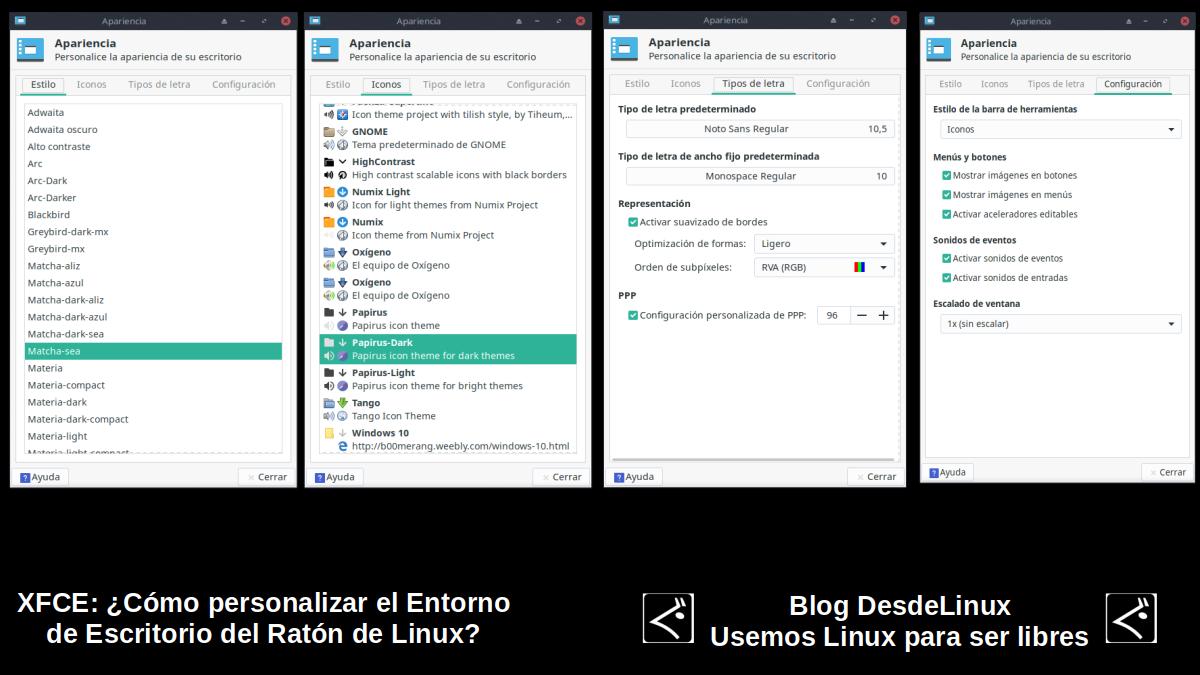
Appearance
To start the XFCE customization, the ideal should be to start with the overall appearance of the DE, which can be started through the option "Appearance" of the "Configuration manager" by XFCE. To do this, users should scroll through each tab (Style, Icons, Font and Settings) and try different configurations. Mine can be seen in the image immediately above.
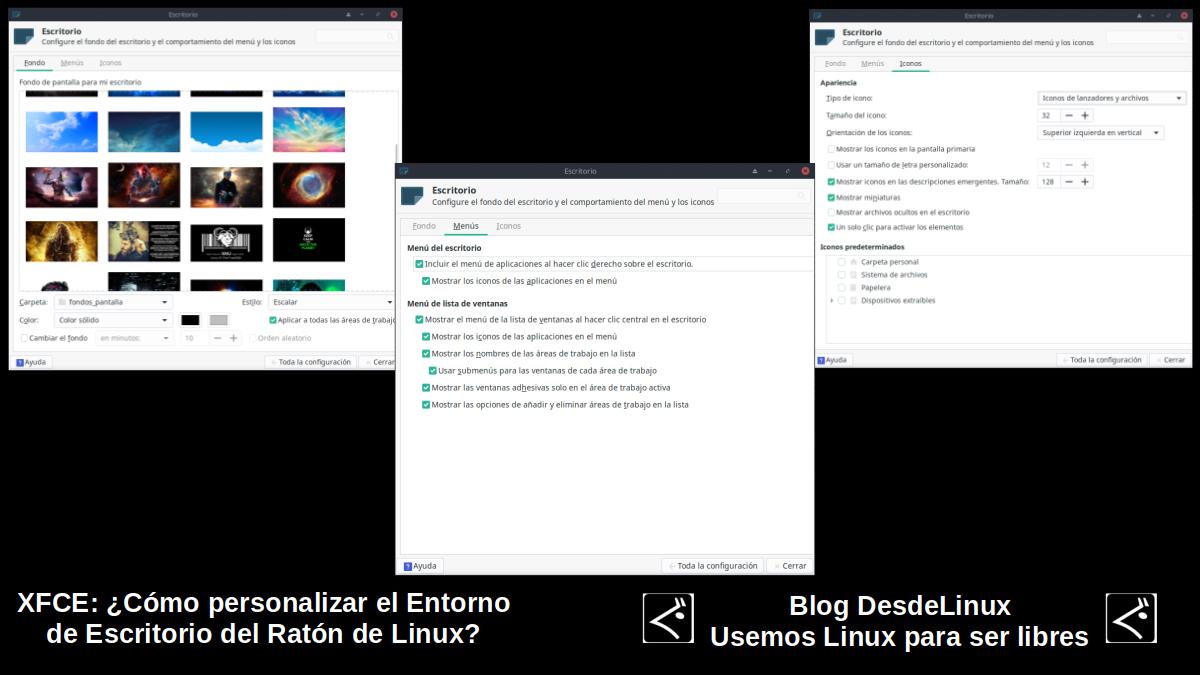
Desktop
Then you can go to the option "Desk" of the "Configuration manager" by XFCE. To do this, users should scroll through each tab (Background, Menus and Icons) and try different configurations. Mine can be seen in the image immediately above.
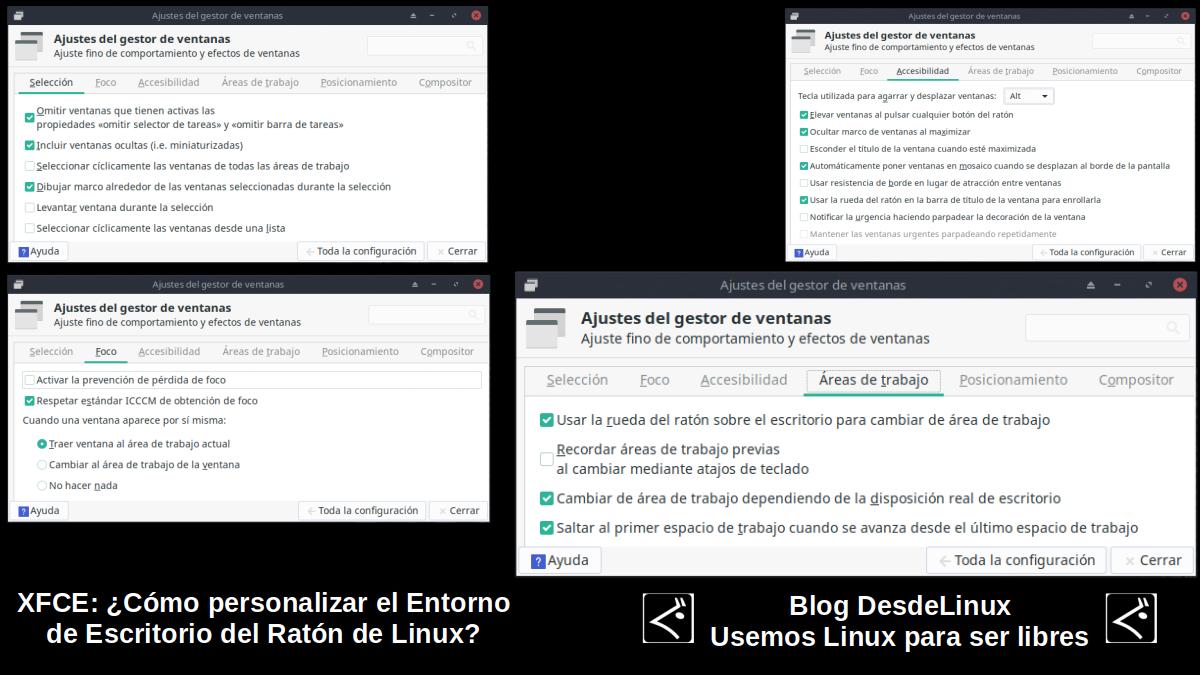

Window Manager Settings
Then go to option "Window Manager Settings" of the "Configuration manager" by XFCE. To do this, users should scroll through each tab (Selection, Focus, Accessibility, Work Areas, Positioning and Composer) and try different configurations. Mine can be seen in the image immediately above.
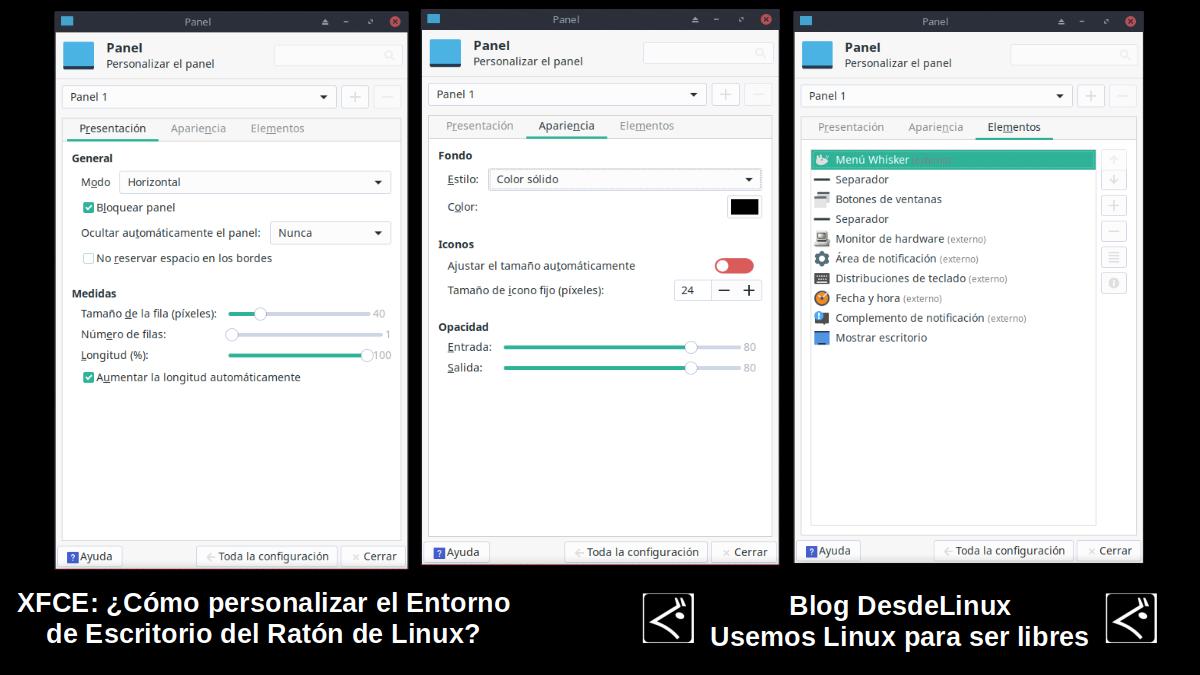
Desktop main panel
From there you can go to the option "Panel" of the "Configuration manager" by XFCE. To do this, users should scroll through each tab (Presentation Appearance and Elements) and try different configurations. Mine can be seen in the image immediately above.
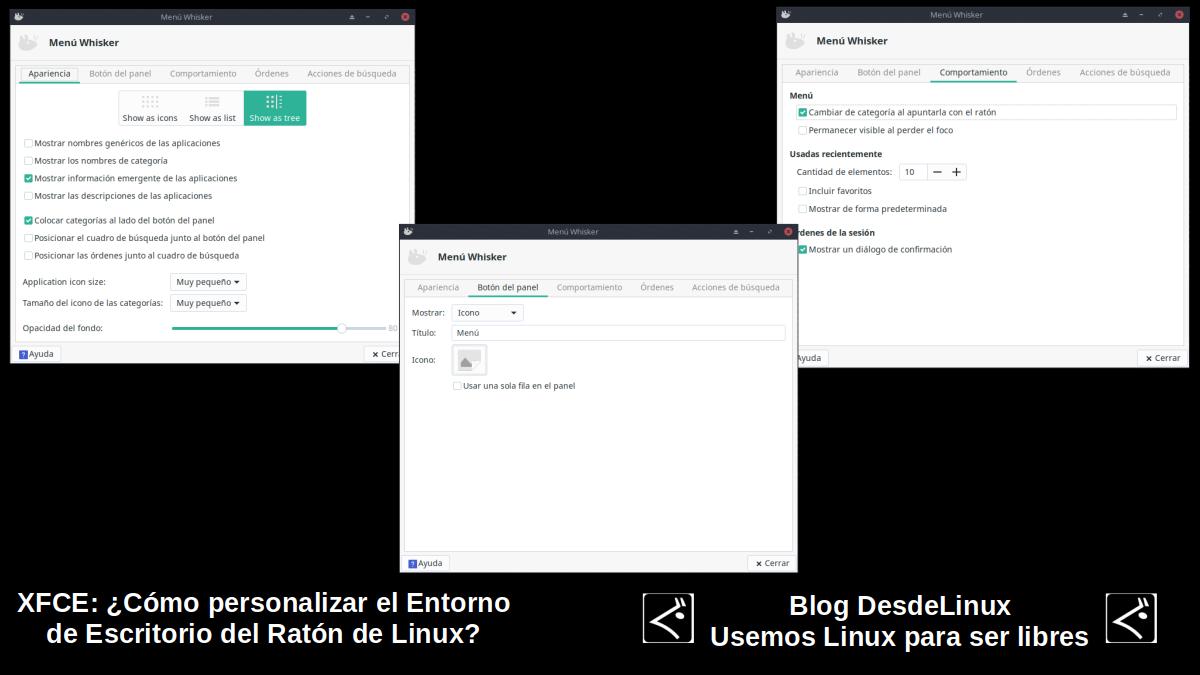

Home Button and Menu
In my particular case, as you can see I use the element (widget) called «Wishker Menu» replacing the "Traditional XFCE Menu". Which allows me to configure it as seen, in the image immediately above.
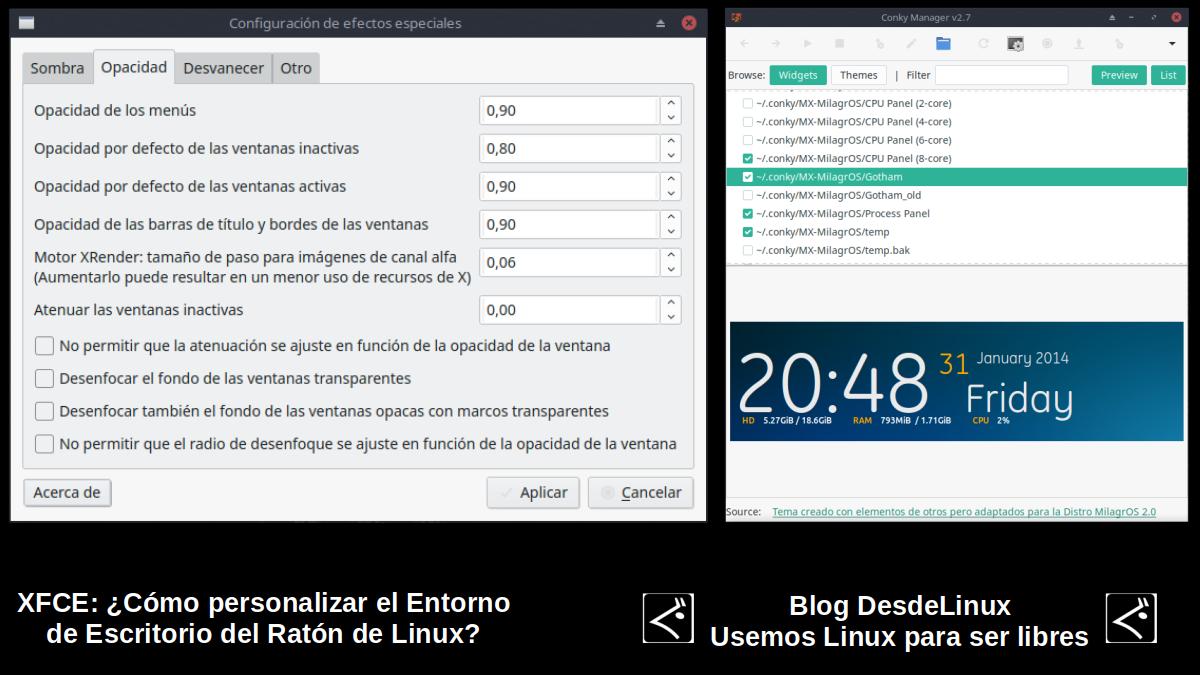
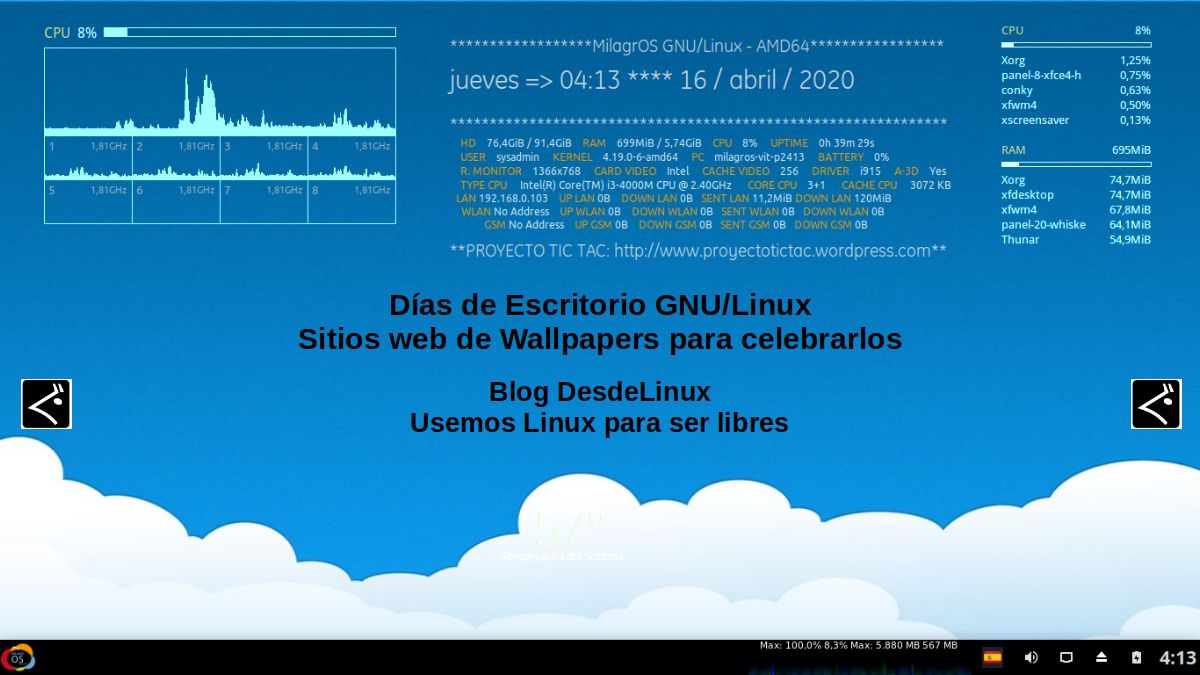
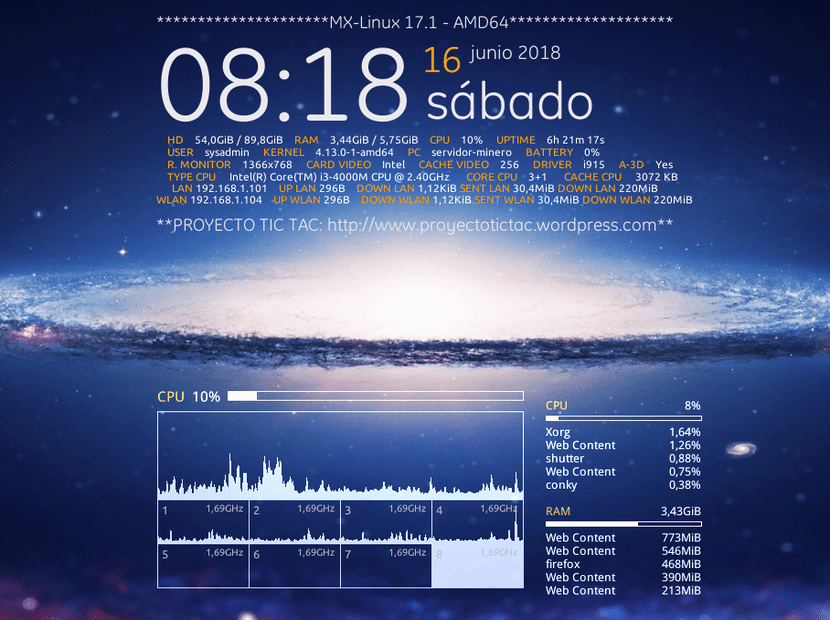
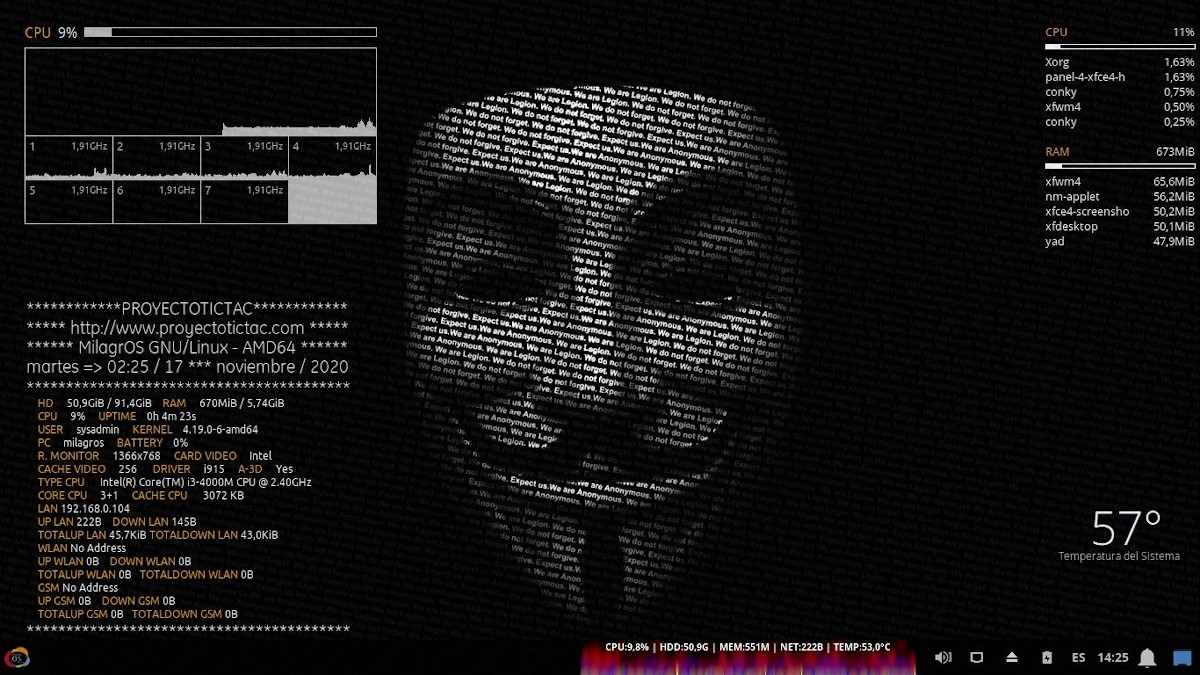
Other external elements (Conky)
- Compton: To achieve, among many other visual effects, global transparencies that include transparencies for the active windows, and transparencies for the main menu window.
- Conky's: To achieve including beautiful and functional informative displays on the desktop.
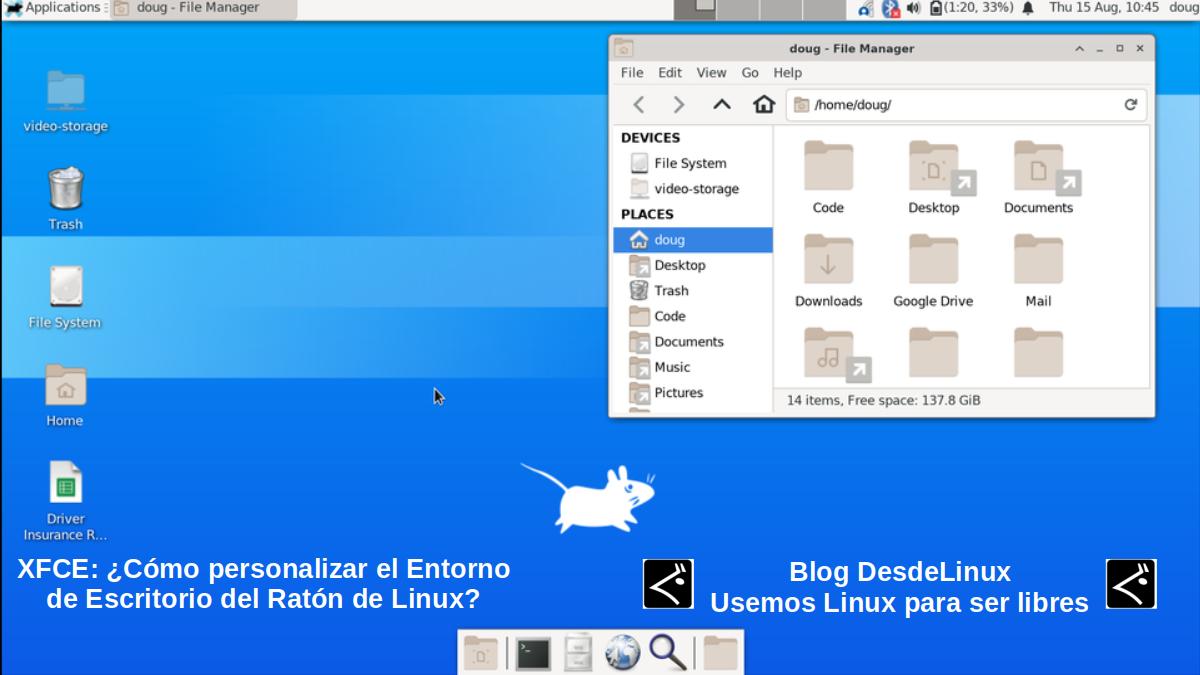
Certainly, much more can still be done to customize XFCEHowever, at this point, one could easily go from visual appearance of the default desktop, such as the one shown in the immediate upper image, to another totally different from it, such as the one I have shown you much above.

Conclusion
We hope this "useful little post" about «¿Cómo personalizar el Entorno de Escritorio XFCE?», which by default, comes very light and minimalist, and therefore, not very attractive from the visual point of view; is of great interest and utility, for the entire «Comunidad de Software Libre y Código Abierto» and of great contribution to the diffusion of the wonderful, gigantic and growing ecosystem of applications of «GNU/Linux».
And for more information, always do not hesitate to visit any Online library as OpenLibra y jedit to read books (PDFs) on this topic or others knowledge areas. For now, if you liked this «publicación», don't stop sharing it with others, in your Favorite websites, channels, groups, or communities of social networks, preferably free and open as Mastodon, or secure and private like Telegram.